


Link Roles
Coordinators and role approvers can link roles, so that membership in one role will automatically result in a request for membership to another role. This is useful for teams whose members all need access to a set of groups and resources.
For example, Team A does all of their work on the `dane` and `matrix` clusters. In the past, when someone new joined the team, they had to make two requests in IDM to be added to both resources. However, now that the role approver of `teamA-group-ocf` has linked it to the resource roles `dane-ocf-resource` and `matrix-ocf-resource`, when a new person joins the team they can simply request to be added to `teamA-group-ocf` and a request will be put in for access to the two resources automatically. When the team starts working on another cluster, `teamA-group-ocf` can be linked to the new cluster and the members in that role will have requests generated to give them access.
Step 1: Login
Log into [the new IDM](https://lc-idm.llnl.gov/) and authenticate via LC OAuth.
Step 2: Select "Request" from the top menu bar

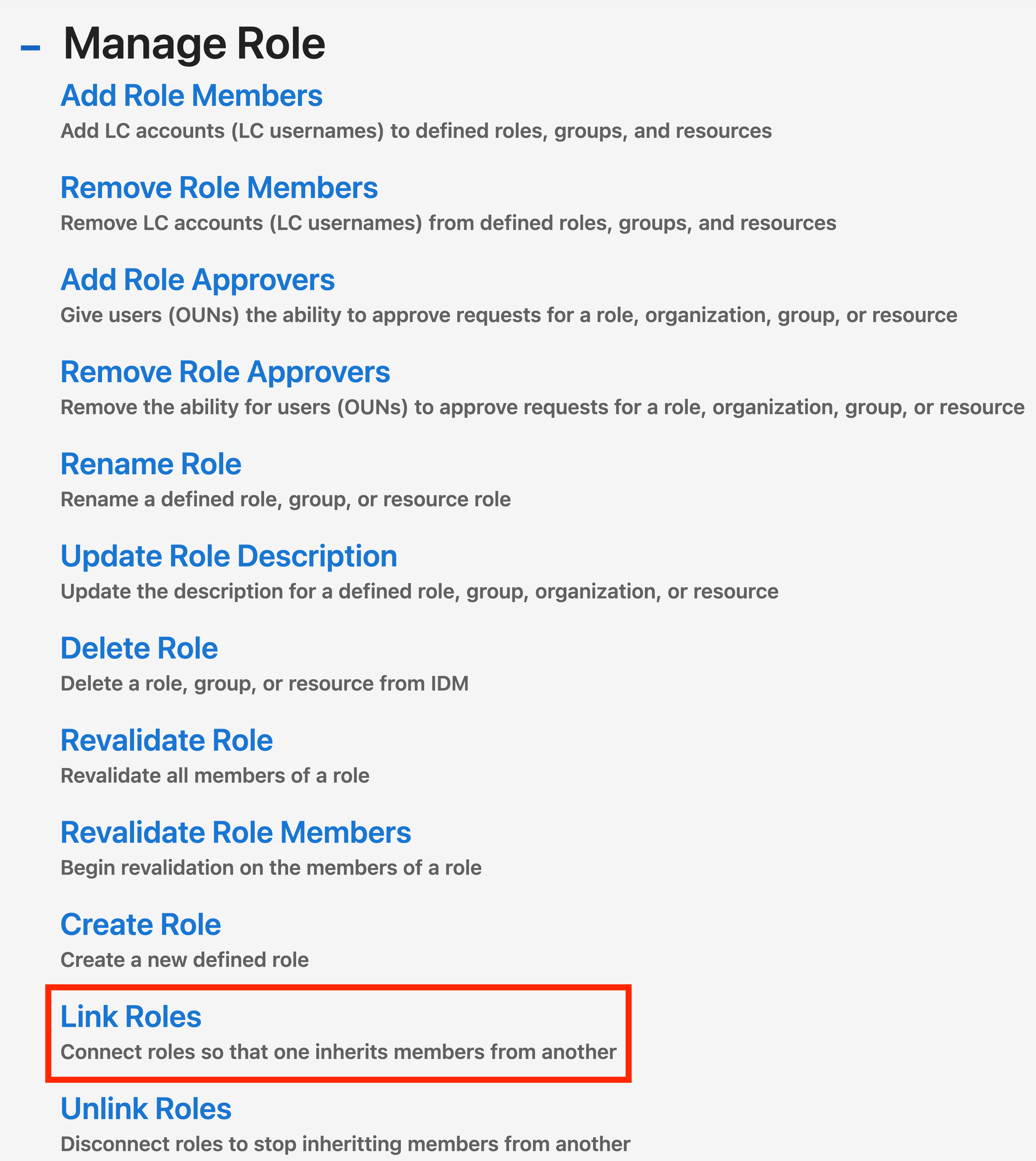
Step 3: Select "Link Role"
Select "Link Role" from the list of actions in the "Manage Role" section. Note that you will only see this option if you are a role approver.
Step 4: Choose roles to link
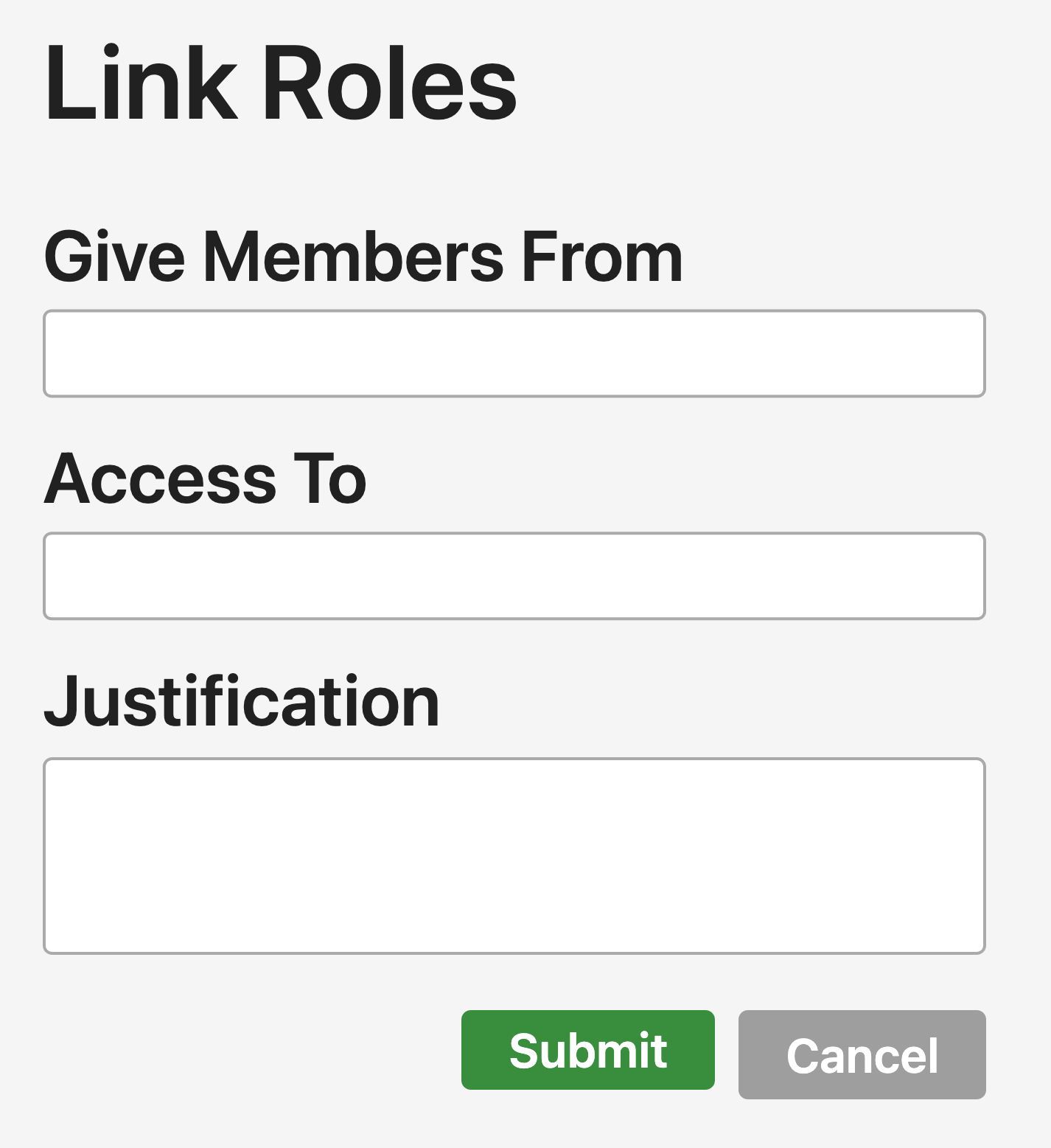
- Click the text box under "Give Members From" to see a list of roles that you are an approver for. Begin typing to filer the list down and select the role you want.
- Click the text box under "Access To" to see the top of a list of all roles. Begin typing to filter the list down and select the role you want members of your role to have access to.
- Provide a brief justification for linking these roles.
- Press "Submit" to submit the request. The owner of the role will then be asked to approve the request.
- After the approval step is complete, it will take up to 20 minutes for your changes to appear on OCF machines and up to 2 hours for SCF machines.
Unlink Roles
Follow steps 1 and 2, then select "Unlink Roles" in Step 3.