


Overview
If you want to pull or push data from/to a GitLab repo living at either https://lc.llnl.gov/gitlab or https://rzlc.llnl.gov/gitlab while working on a local machine (laptop or desktop), please follow these steps:
- Create an RSA ssh key pair on the local machine from which you want to interact with a GitLab repo.
- Add your public key, id_rsa.pub, to your GitLab account in a browser.
- Create a config file on your local machine.
- Copy your public key to LC.
- Test that you can connect to the relevant GitLab server from the local machine where you'll be working.
Step-by-Step Instructions
Here is a more detailed explanation of the above steps:
- Step 1: Create an RSA ssh key pair
-
You need to create an RSA ssh key pair on the machine from which you want to interact with a GitLab repo. Concretely,
- Enter the .ssh subdirectory under your $HOME: cd $HOME/.ssh. (Note that .ssh is a hidden directory and will not be visible under your $HOME by default.)
- Run ssh-keygen -t rsa -b 4096 after reading the following sub bullets:
-
The set of output, including prompts and responses from you, from running ssh-keygen should look something like the following:
[janeh@izgw3:.ssh]$ ssh-keygen -t rsa -b 4096
Generating public/private rsa key pair.
Enter file in which to save the key (/home/janeh/.ssh/id_rsa):
Enter passphrase (empty for no passphrase):
Enter same passphrase again:
Your identification has been saved ...
- Note that you will first be asked for a filename. The default should be something like $HOME/.ssh/id_rsa. Accept this default by hitting Enter.
- Note that you will next be asked for a passphrase. It is recommended that you do NOT enter a passphrase. Skip this step by hitting Enter. Hit Enter a second time when asked to confirm your passphrase.
- The names of the files created and a bit of keyart will then be printed to standard out. You don’t need to do anything with the keyart.
-
- After running ssh-keygen and responding to the ensuing prompts, check that id_rsa and id_rsa.pub exist in your $HOME/.ssh directory.
- Step 2: Add Your Public Key to GitLab
-
To add your public key, id_rsa.pub, to your GitLab account in a browser:
1. In a browser, go to either https://lc.llnl.gov/gitlab or https://rzlc.llnl.gov/gitlab and log in. (See docs for help.)
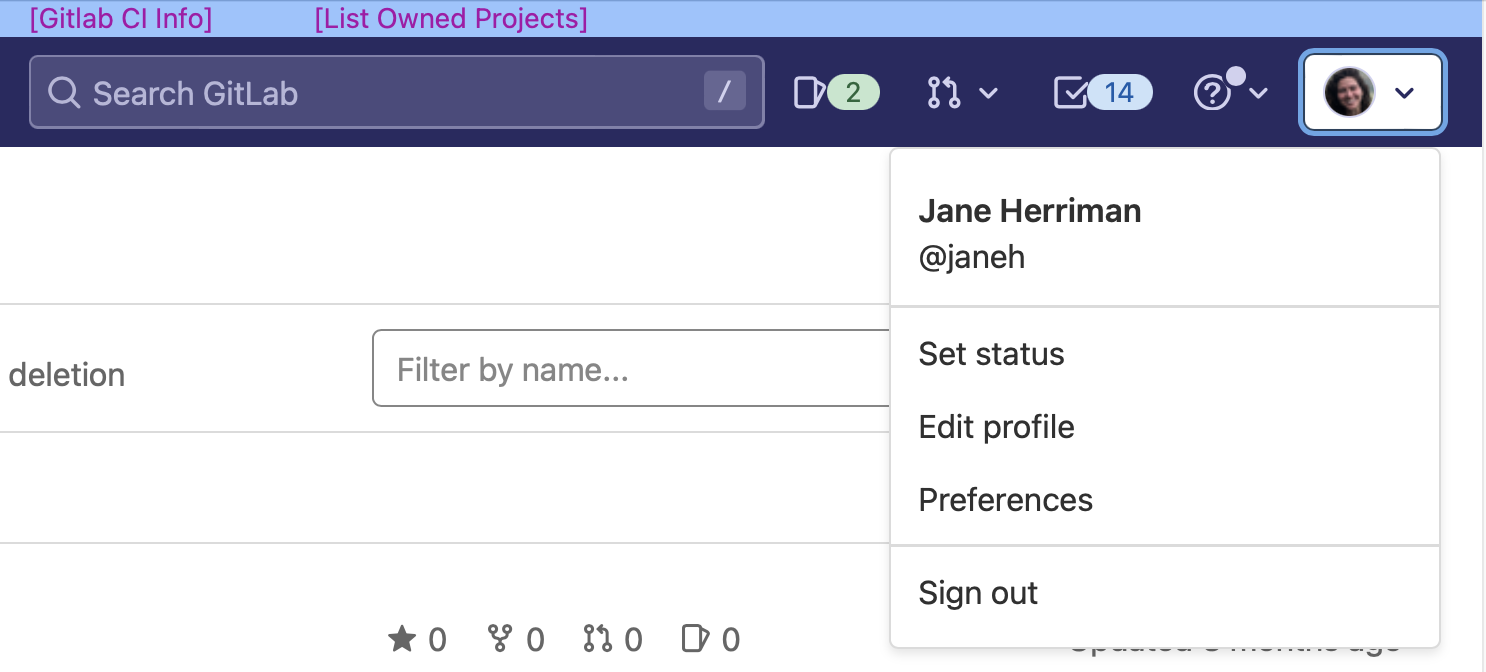
2. In the upper right corner, you will see an icon for your account with a drop down arrow to the right. Hover over this arrow to display options and select “Edit profile”.
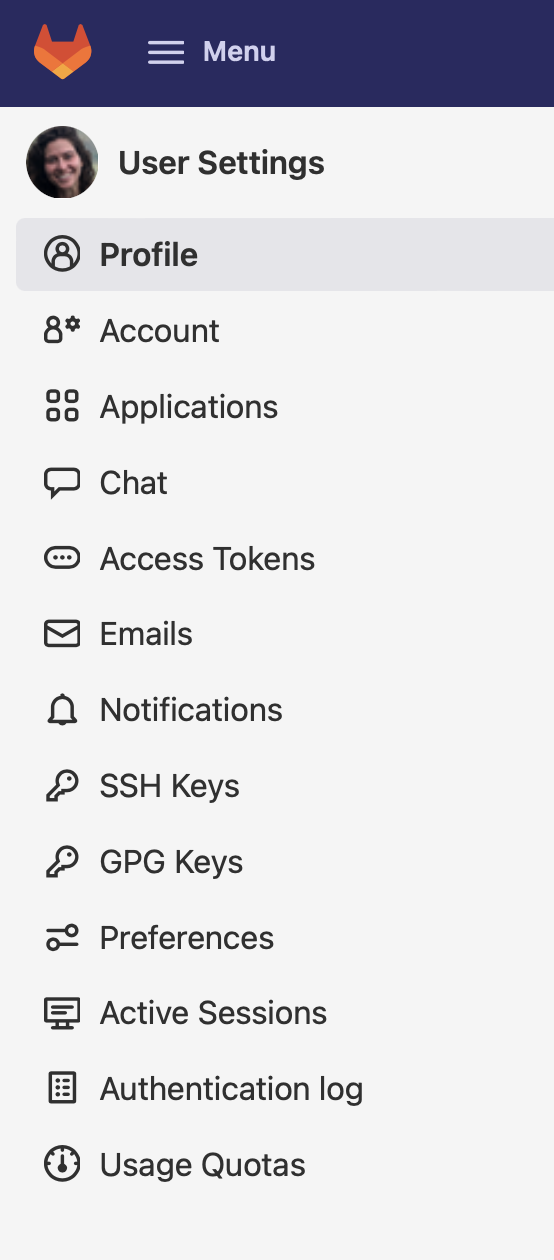
3. A menu on the lefthand side will now appear. Select “SSH Keys”.
4. You will now see a page where you can enter ssh key information:

- Copy the text in the file id_rsa.pub and paste it into the text box under the “Key” field.
- Provide a “Title” identifying the machine where you generated the associated ssh key pair.
- Do not enter an expiration date. This will allow the key to persist indefinitely.
- Click “Add key”.
5. You should now see an RSA key listed under “Your ssh keys” on the same page.
- If you want to use repos both at https://lc.llnl.gov/gitlab and https://rzlc.llnl.gov/gitlab, you have to repeat the above setup for both GitLab servers.
- Step 3: Create a Config File on Your Local Machine
-
Create a config file on your local machine using one of our templates. Select the instructions relevant to you under the “Example Config Files” section at https://dev.llnl.gov/securityaccess/ssh/.
If you do not have yellow network access, and are on the CZ, you can use the template below.
- Copy the text of the template to a file at ~/.ssh/config on your local system.
- Make the following adjustments to your copy of config:
- Make sure the ssh (private) key file named on the line IdentityFile matches your own.
- Make sure you add your LC username on the last line of the file User <YOUR_LC_USERNAME_HERE>, replacing <YOUR_LC_USERNAME_HERE>.
- Make sure the config file, like your ssh keys, lives in $HOME/.ssh.
Minimal CZ .ssh/config
— Minimal .ssh/config file for CZ users —
# — Minimal .ssh/config file for CZ users — # Proxy connections to LC Gitlab through jump host Host czgitlab.llnl.gov ProxyCommand ssh oslic -W %h:7999 ControlMaster no # Jump host Host oslic Hostname oslic.llnl.gov PreferredAuthentications password User <YOUR_LC_USERNAME_HERE> - Step 4: Copy Your Public Key to LC
-
Copy your public key to an LC *slic machine. If you are a CZ-only user, you'll want to copy your public key to oslic. If you are a CZ+RZ user, you'll want to copy your public key to rzslic. The public key you want on *slic is the same public key file generated on your local machine.
- You may be able to copy your key via the command ssh-copy-id <LC_USERNAME>@<MACHINENAME>.
- If this works, you are done!
- If ssh-copy-id does not work from your local machine, use scp as described in step 2.
- Log in to *slic (oslic, rzslic, or cslic) and check to see if you have a file called $HOME/.ssh/authorized_keys.
- If authorized_keys does not exist on *slic, copy your public key file via scp to authorized_keys on *slic.
-
The syntax will look something like
scp $HOME/.ssh/id_rsa.pub <LC_USERNAME>@<*slic.llnl.gov>:<LC_HOME_DIR>/.ssh/authorized_keys
-
As an example, this might look like
scp $HOME/.ssh/id_rsa.pub janeh@rzslic.llnl.gov:/g/g0/janeh/.ssh/authorized_keys
-
-
If authorized_keys does exist on *slic,
-
Copy $HOME/.ssh/id_rsa.pub to a file of another name on *slic, using the syntax from the last step. This might look like
scp $HOME/.ssh/id_rsa.pub janeh@oslic.llnl.gov:/g/g0/janeh/.ssh/laptop_id_rsa.pub
-
While on *slic in $HOME/.ssh, append the contents of the newly created public key file to authorized_keys, via
cat <public key filename> >> authorized_keys
For example, you might run
cat laptop_id_rsa.pub >> authorized_keys
-
- If authorized_keys does not exist on *slic, copy your public key file via scp to authorized_keys on *slic.
- You may be able to copy your key via the command ssh-copy-id <LC_USERNAME>@<MACHINENAME>.
- Step 5: Test Your GitLab connection
-
Test that you can connect to the relevant GitLab server.
If the repo you want to talk to lives on CZ GitLab (https://lc.llnl.gov/gitlab), run:
ssh -p7999 git@czgitlab.llnl.govIf the repo lives on RZ GitLab (https://rzlc.llnl.gov/gitlab), run:
ssh -p7999 git@rzgitlab.llnl.govIf the repo lives on SCF, run:
ssh -p7999 git@scfgitlab.llnl.govAs a result, you should see:
1. You may be prompted “Are you sure you want to continue connecting (yes/no)?” Respond “yes”.
2. A successful connection will return something like
```
PTY allocation request failed on channel 0
Welcome to GitLab, @janeh!
Connection to czgitlab closed.”
```