


Overview
Authentication needs depend on the type of user account, which zone is being accessed, and which resource or service is being accessed. Authentication requirements and instructions are grouped by account type.
Account types
LC accounts are managed via the LC-IDM system (LC IDM documentation). If you do not have an LC account, see New Account Setup. Please note that your LC username may be unique.
- LLNL Users including all LLNL-employees (including interns) and collaborators.
- LANL Users with an LC account created via SARAPE.
- Sandia Users with an LC account created via SARAPE.
Users with existing accounts can manage their accounts via LC IDM.
Zones
LC resources are located within disparate zones, depending on security needs and concerns. Many LC resources are replicated across zones, with the goal of providing a consistent user experience.
Most CZ resources are accessible from the public internet (though tri-lab users may have certain connection requirements, see below). RZ resources must be access via LLNL VPN or an equivalent tri-lab network. SCF resources require specific network access.
Resources and Services
LC provides many types of resources and services:
- Compute resources. Traditional HPC compute platforms (and associated file systems) are accessed via SSH or VNC.
- Web services accessed via web-browsers. In general, web resource URLs are identical between the CZ and SCF zones and typically start with lc.llnl.gov. Web resources in the RZ can be found at rzlc.llnl.gov.
- LC GitLab repositories accessed from the command line.
One-time Password (OTP) Tokens
Many LC users will authenticate via a One-Time Password (OTP) token, also known as an RSA token. Some LANL or Sandia user accounts are configured to not require an OTP token. This can impact which LC services are accessible to them.
There are different tokens depending on the zone being accessed and LC users may need to manage multiple tokens. The same RSA token is used for both CZ and SCF; however, a different PIN is used for each network.
The LC Hotline will send you an LLNL RSA token and/or RZ RSA token when you are given an account. When you receive your LLNL RSA/RZ RSA token, you must enable it before you can log in. Instructions are provided with your account notification e-mail.
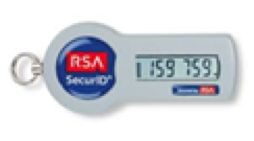
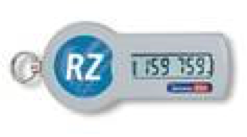
LLNL RSA token information can also be found on One-Time Password Toolkit page, including token diagnostics and testing. Users may also use the CZ Token Self-Help Website, which has the same token diagnostic and testing features as the One-Time Password Toolkit.
For specifics on using a RZ RSA token, refer to Technical Bulletin 513, RZ Token and Login Behavior Change. From the RZ Token Self-Help Website, you may change your PIN or resync your RZ RSA token.
Problems?
- Under certain circumstances, an OTP server and your token may get out of sync. In such cases it is necessary to enter two consecutive token codes so the server can resynchronize itself.
- You may also need/want to change your PIN.
- Both of these actions can be performed via the OTP web pages listed below:
- CZ OTP home page: otp.llnl.gov
- RZ OTP home page: rzotp.llnl.gov
- SCF OTP home page: otp.llnl.gov
- Contact the LC Hotline if problems persist, or for other token related issues/questions: (925) 422-4533 or lc-support@llnl.gov
LLNL Users and Collaborators
Includes all LLNL-employees (including interns) and collaborators. These instructions are intended for anyone with LLNL/LC issued OTP tokens, which may include some tri-lab users.
NOTE Your LC username may be different from your LLNL-assigned OUN (official user name).
- CZ Resources and Services
-
CZ Compute Clusters
ssh loginmachine
User ID: LC Username
Password: LLNL PIN + LLNL RSA TokenCZVNC
Connect using the RealVNC or VNC Viewer application to czvnc.llnl.gov:5999
User ID: LC username
Password: LLNL pin + LLNL RSA token.See additional details and troubleshooting guidance on the VNC: RealVNC (a.k.a. VNC Viewer) page.
CZ Web Sites
Users coming from the public internet (not onsite or on LLNL VPN) need to go through a 2 step authentication process, a pre-login step, followed by authentication to the cz-auth server. Users who are onsite / on LLNL VPN only need to do the CZ-auth step. NOTEToken code re-use is not allowed. Make sure to use a different token code each time you authenticate.
Log in at lc.llnl.gov.
Pre-login
User ID: LLNL OUN
Password: LLNL PIN + LLNL RSA TokenCZ-Auth
User ID: LLNL OUN
Password: LLNL PIN + LLNL RSA Token or DOE OneID authentication.See the Accessing LC Websites page for step-by-step instructions.
LC CZ GitLab Repositories
Connecting to LC GitLab instances can require some local configuration. Please see the Getting Started with LC GitLab page.
- RZ Resources and Services
-
NOTEUsers must be onsite or on LLNL VPN to access RZ resources. If unfamiliar with how to use LLNL VPN, see: https://access.llnl.gov/vpn/
RZ Compute Clusters
ssh loginmachine
User ID: LC Username
Password: PIN + LC RZ TokenRZVNC
Connect using the RealVNC or VNC Viewer application to rzvnc.llnl.gov:5999
User ID: LC username
Password: PIN + LC RZ Token.See additional details and troubleshooting guidance on the VNC: RealVNC (a.k.a. VNC Viewer) page.
RZ Web Sites
Log in at rzlc.llnl.gov.
RZ-Auth
User ID: LLNL OUN
Password: PIN + LC RZ TokenSee the Accessing LC Websites page for step-by-step instructions.
LC RZ GitLab Repositories
Connecting to LC GitLab instances can require some local configuration. Please see the Getting Started with LC GitLab page.
- SCF Resources and Services
-
SCF Compute Clusters
ssh loginmachine
User ID: LC Username
Password: SRD PIN + LLNL RSA TokenSCFVNC
Connect using the RealVNC or VNC Viewer application to scfvnc.llnl.gov:5999
User ID: LC username
Password: SRD PIN + LLNL RSA token.See additional details and troubleshooting guidance on the VNC: RealVNC (a.k.a. VNC Viewer) page.
SCF Web Sites
Log in at lc.llnl.gov.
SCF-Auth
User ID: LC Username
Password: SRD PIN + LLNL RSA TokenSee the Accessing LC Websites page for step-by-step instructions.
LC SCF GitLab Repositories
Connecting to LC GitLab instances can require some local configuration. Please see the Getting Started with LC GitLab page.
- Tri-Lab Resources
-
Please see the Connecting to Sandia HPC Platforms and Connecting to LANL HPC Platforms pages.
LANL Users
For requesting accounts, see the Getting Access to Tri-lab Machines page. Some LANL users may accounts configured for OTP token access. These users can follow the above instructions for collaborators.
- CZ Resources and Services
-
CZ Compute Clusters
LANL users can ssh directly to LC CZ systems using Kerberos authentication from either Rocinante’s front-end node, ro-rfe.lanl.gov, or from one of LANL’s file transfer agent nodes, re-fta.lanl.gov.
- Make sure you have a valid kerberos credential - use the klist -l command.
- If in doubt, get a forwardable kerberos credential by authenticating with the kinit -f command.
- Login to either ro-rfe.lanl.gov or re-fta.lanl.gov
-
Then connect to an LC cluster in the CZ zone using your LC username. No password required.
ssh -l lc-username loginmachine.llnl.gov
Note: If you experience session time-outs due to inactivity, try adding the following two options to your SSH command:
-oServerAliveInterval=60 -oServerAliveCountMax=30
CZVNC
We recommend that users connect to RZVNC instead. Once on an LC RZ system, you can access LC CZ systems. See instructions in the "RZ" section.
CZ Web Services
You must connect from the LANL network.
Log in at lc.llnl.gov or any other lc.llnl.gov webpage. You will be redirected to a cz-auth page where you should sign-in using your DOE OneID credentials.
See the Accessing LC Websites page for step-by-step instructions.
LC CZ GitLab Repositories
Connecting to LC GitLab instances can require some local configuration. Please see the Getting Started with LC GitLab page.
- Make sure you have a valid kerberos credential - use the klist -l command.
- RZ Resources and Services
-
LANL's Restricted Enclave (RE) zone is equivalent to LC's RZ.
RZ Compute Clusters
LANL users can ssh directly to LC RZ systems using Kerberos authentication from either Rocinante’s front-end node, ro-rfe.lanl.gov, or from one of LANL’s file transfer agent nodes, re-fta.lanl.gov.
- Make sure you have a valid kerberos credential - use the klist -l command.
- If in doubt, get a forwardable kerberos credential by authenticating with the kinit -f command.
- Login to either ro-rfe.lanl.gov or re-fta.lanl.gov
-
Then connect to an LC cluster in the CZ zone using your LC username. No password required.
ssh -l lc-username loginmachine.llnl.gov
Note: If you experience session time-outs due to inactivity, try adding the following two options to your SSH command:
-oServerAliveInterval=60 -oServerAliveCountMax=30
RZVNC
See additional details and troubleshooting guidance on the VNC: RealVNC (a.k.a. VNC Viewer) page.
For users coming from outside LLNL or the ihpc network, you will first need to set up an SSH tunnel to forward your traffic.
-
Set up a tunnel through a server on an approved network (LLNL or LANL/SNL ihpc node). For example, from an SNL desktop, you might type:
ssh -L 5999:rzvncsso.llnl.gov:5999 ihpc-gate
- Then launch your VNC viewer and connect to localhost:5999
RZ Web Services
You must connect from the LANL network.
Log in at lc.llnl.gov or any other lc.llnl.gov webpage. You will be redirected to a cz-auth page where you should sign-in using your DOE OneID credentials.
See the Accessing LC Websites page for step-by-step instructions.
LC RZ GitLab Repositories
Connecting to LC GitLab instances can require some local configuration. Please see the Getting Started with LC GitLab page.
- Make sure you have a valid kerberos credential - use the klist -l command.
- SCF Resources and Services
-
SCF Compute Clusters
Connect to the classified HPC system, redcap.
Run kinit -f
Then ssh to an LC cluster using your LC username:
ssh -l lc-username loginmachine.llnl.gov
No password requiredSCF Web Services
Authenticate with your
lanl-username@lanl.gov
and your LANL secure CryptoCard password.
NOTE: If you are logging in to GitLab, you need to use you LC Username, rather than your local username. You will still use your CryptoCard password.
See the Accessing LC Websites page for step-by-step instructions.
LC SCF GitLab Repositories
Connecting to LC GitLab instances can require some local configuration. Please see the Getting Started with LC GitLab page.
Sandia Users
For requesting accounts, see the Getting Access to Tri-lab Machines page. Some Sandia users may accounts configured for OTP token access. These users can follow the above instructions for collaborators. Sandia users accessing the RZ must have an LC-issued RZ OTP Token.
- CZ Resources and Services
-
CZ Compute Resources
- Begin on a Sandia iHPC login node, such as ihpc.sandia.gov.
- Make sure you have a valid kerberos credential - use the klist -l command.
- If in doubt, get a forwardable kerberos credential by authenticating with the kinit -f command.
- Then connect to an LC cluster in the CZ zone using your LC username. No password required.
ssh -l lc-username loginmachine.llnl.gov
Note: If you experience session time-outs due to inactivity, try adding the following two options to your SSH command:
-oServerAliveInterval=60 -oServerAliveCountMax=30
CZVNC
We recommend that users connect to RZVNC instead. Once on an LC RZ system, you can access LC CZ systems. See instructions in the "RZ" section.
CZ Web Services
You must connect from the Sandia network.
Log in at lc.llnl.gov or any other lc.llnl.gov webpage. You will be redirected to a cz-auth page where you should sign-in using your DOE OneID credentials.
See the Accessing LC Websites page for step-by-step instructions.
LC CZ GitLab Repositories
Connecting to LC GitLab instances can require some local configuration. Please see the Getting Started with LC GitLab page.
- RZ Resources and Services
-
NoteSandia users accessing the RZ must have an LC-issued RZ OTP Token.
RZ Compute Resources
- Begin on a Sandia iHPC login node, such as ihpc.sandia.gov.
-
Connect directly to the RZ login machine using your LC username and RZ credentials:
ssh -l lc-username loginmachine.llnl.gov
- Password: PIN + RZ RSA token
Note: If you experience session time-outs due to inactivity, try adding the following two options to your SSH command:
-oServerAliveInterval=60 -oServerAliveCountMax=30
RZVNC
See additional details and troubleshooting guidance on the VNC: RealVNC (a.k.a. VNC Viewer) page.
For users coming from outside LLNL or the ihpc network, you will first need to set up an SSH tunnel to forward your traffic.
-
Set up a tunnel through a server on an approved network (LLNL or LANL/SNL ihpc node). For example, from an SNL desktop, you might type:
ssh -L 5999:rzvncsso.llnl.gov:5999 ihpc-gate
- Then launch your VNC viewer and connect to localhost:5999
RZ Web Services
You must connect from the Sandia network.
Log in at lc.llnl.gov or any other lc.llnl.gov webpage. You will be redirected to a cz-auth page where you should sign-in using your DOE OneID credentials.
See the Accessing LC Websites page for step-by-step instructions.
LC RZ GitLab Repositories
Connecting to LC GitLab instances can require some local configuration. Please see the Getting Started with LC GitLab page.
- SCF Resources and Services
-
SCF Compute Clusters
Connect to local, classified HPC system
Run kinit -f
Then ssh to an LC cluster using your LC username:
ssh -l lc-username loginmachine.llnl.gov
No password requiredSCF Web Services
Authenticate with your
sandia-username@dce.sandia.gov
and your Sandia secure CryptoCard password.
NOTE: If you are logging in to GitLab, you need to use you LC Username, rather than your local username. You will still use your CryptoCard password.
See the Accessing LC Websites page for step-by-step instructions.
LC SCF GitLab Repositories
Connecting to LC GitLab instances can require some local configuration. Please see the Getting Started with LC GitLab page.