Connecting to LC Machines with X-Win32
The instructions below show how to setup an X-Win32 connection to LC machines.
X-Win32 can be installed on LLNL Windows systems via the LANDesk Software Portal. For assistance with license keys, see the answers.llnl.gov article "How to: Manually add license to X-Win32"
1. Click on the Windows Start Logo, start typing "x-win32" and click on the X-Win32 Desktop app.
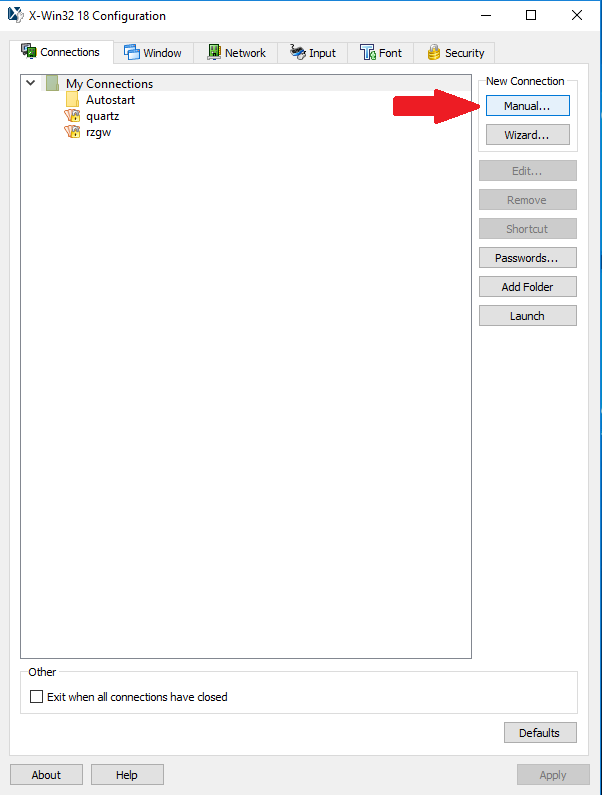
2. The X-Win32 Configuration dialog box (below) should appear. Make sure that you are on the "Connections" tab. Then click the "Manual" button to setup a connection. Note: You can also select the Wizard button to be led through the process step by step.
3. A Connection Method dialog box will appear. Select "ssh" and then Next.

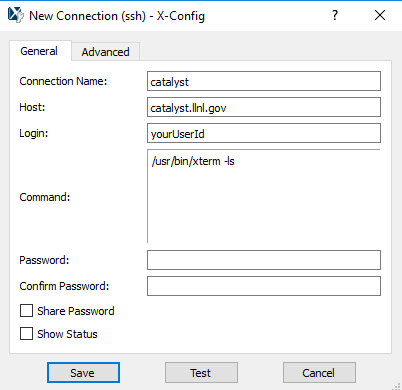
4. In the New Connection dialog box, setup your connection.
Connection Name: the name you want to call this connection - usually the name of the machine
Host: the actual name of the machine - including the .llnl.gov suffix is needed if you are connecting from outside the LLNL domain
Login: your LC username
Command: /usr/bin/xterm - your choice of xterm options - see man page.
Password: leave blank
Confirm Password: leave blank
Then click the Save button.
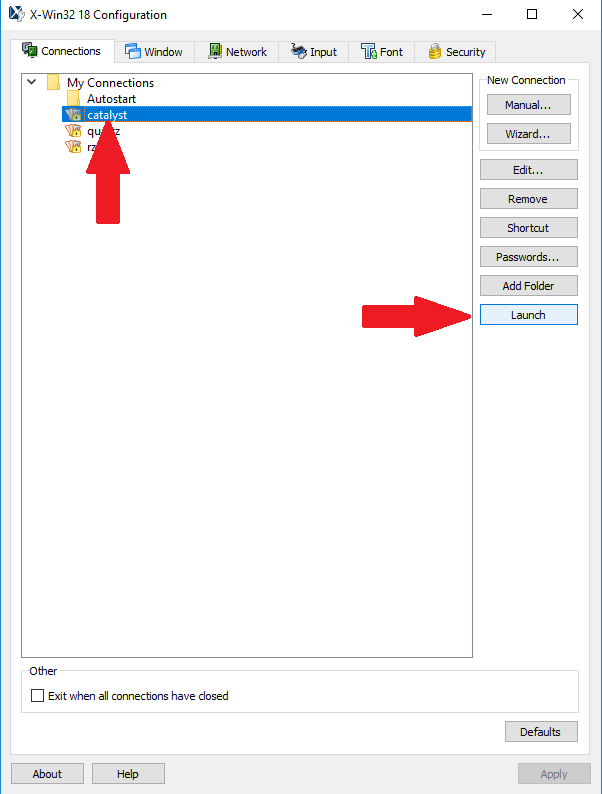
5. You should now see your new connection in the X-Win32 Configuration dialog box. If not, click the My Connections toggle to expand the list. Then select your connection and click the Launch button.
6. You may see the Update Host Key dialog box. Click the Accept button to proceed.

7. When prompted for a password, enter your LC PIN + OTP token passcode combination.

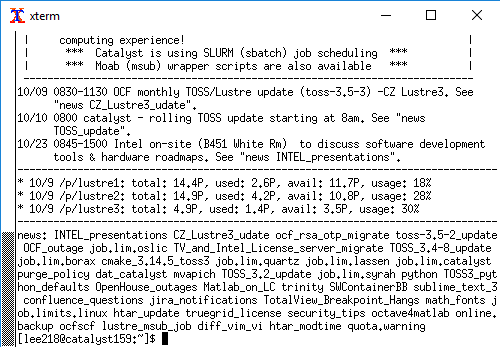
8. If all went well, you should then see a terminal window appear and you will be logged into the machine for this connection.